AI Raindance for TikTok: Prepare, Review and Post a Clip
Learn how to prepare, generate, and share AI Raindance videos. Follow this guide to handle uploads, select scenes, and add music to your TikTok content safely.
AI Raindance Video editorial team · Updated October 8, 2026
Getting Started with AI Raindance
To prepare and share an AI Raindance clip on TikTok, you must first visit the official tool at https://airaindancevideo.org. Create an account, purchase a credit pack, and upload your high-quality JPG, PNG, or WebP photo, ensuring it is under 10MB and features a clear, consenting adult face. Select one of the fourteen available scenes, wait for the asynchronous generation, and download your silent MP4. Finally, upload the file to TikTok, where you can add music and effects using the platform's native editing tools.
Understanding the Tool and Requirements
AI Raindance is an independent creative tool designed for adult-only photo-to-video generation. It is not affiliated with TikTok, Instagram, or any music labels. Because the tool operates independently, it is vital to understand that all generated MP4 files are silent. You are responsible for adding music directly within TikTok, and you must ensure you have the necessary rights to any audio you choose. Never assume that using a popular track on TikTok grants you copyright clearance for your specific content.
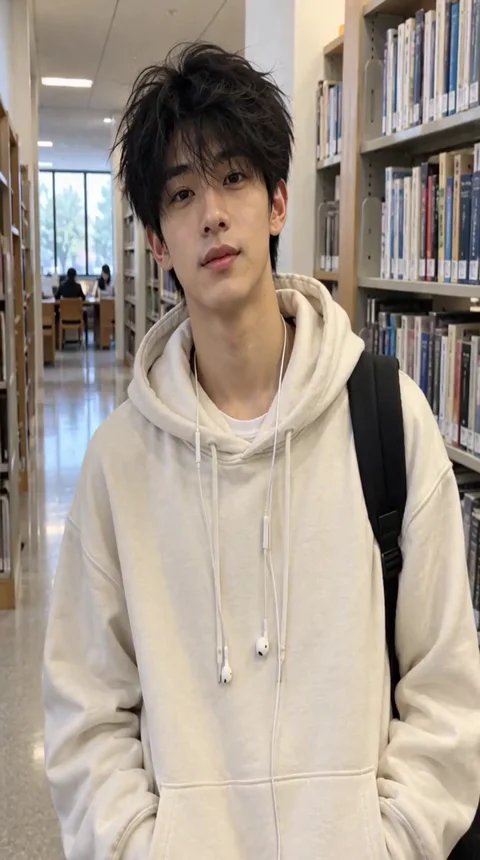
Preparation is the most critical step for success. The tool requires a clear, visible adult face. If you are creating a solo video, you need one high-quality photo. For duet scenes, you must provide two separate photos. The tool attempts to preserve the source outfit and hair, but exact likeness, motion, and hand gestures are never guaranteed. Because the process is asynchronous, generation may take several minutes, and there is no Service Level Agreement regarding speed. You can only run one active job at a time, so plan your creative workflow accordingly.
Selecting Your Scene and Uploading
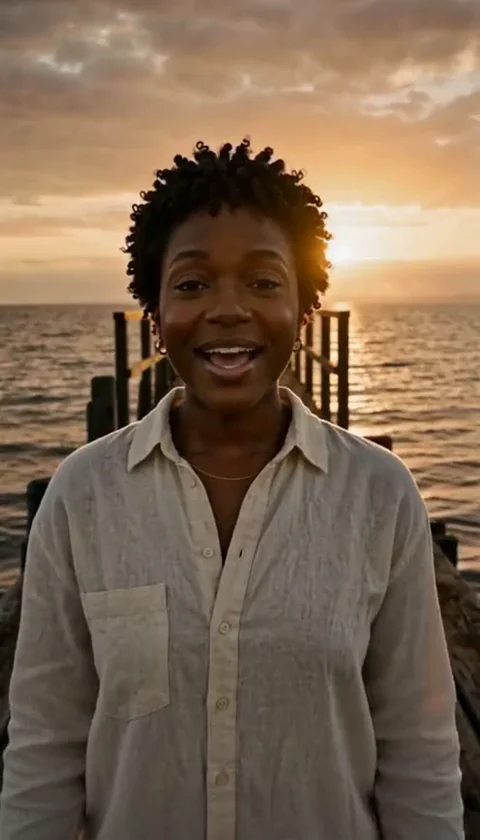
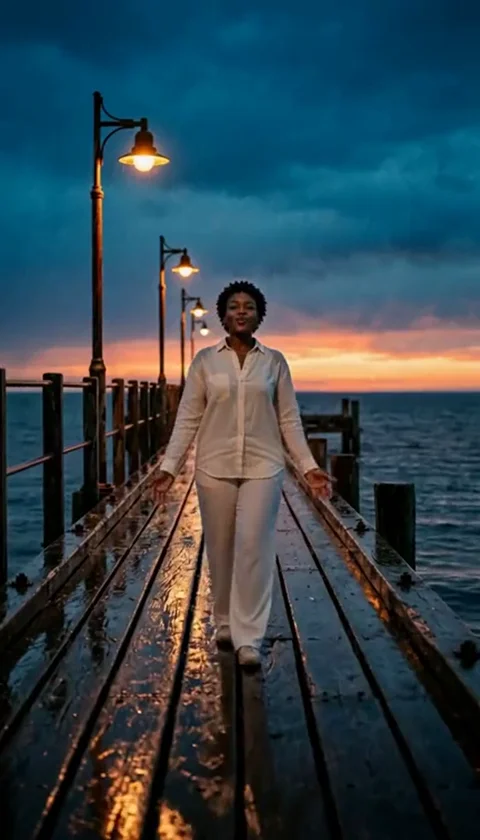
Before you upload, explore the scene preview gallery on the homepage. The tool offers fourteen specific scenes, each with unique durations. For example, the golden-hour solo and duet scenes last eight seconds, while the pier-edge, sea-wade, and streetlight scenes run for ten seconds. The original trend scenes for opening, middle, and ending are also ten seconds each. Note that the tool does not support whole thirty-second outputs in a single job.
When choosing your image, keep in mind the aspect ratio. Vertical scenes maintain the source aspect ratio of 4:7 or 24:43, while the original trend landscape scenes are 131:90. Do not expect every output to be a perfect 9:16 vertical video. Once you have selected your scene, you can provide optional direction using up to 500 characters. While no prompt is strictly required, a brief, clear description can help the model understand your intent. Once submitted, your job enters the queue. Keep your browser open or check back later, as download links are temporary and should be saved promptly.
Managing Credits and Pricing
Access to the tool requires purchasing credit packs, as there are no free trials or subscriptions. As of October 8, 2026, the pricing structure is straightforward: one video costs 100 credits for $9.99, three videos cost 300 credits for $23.99, and ten videos cost 1,000 credits for $59.99. Applicable taxes are calculated at checkout.
If a job fails due to moderation or technical issues, credits are returned to your account automatically. If you encounter payment issues or need support, contact the team directly via email at contact@airaindancevideo.org. Avoid assuming that a failed job implies a permanent loss of funds; the system is designed to handle these discrepancies without requiring a manual cash refund request in most cases. Always check your account balance after a failed attempt.
Checklist for Success
| Task | Requirement | Status |
|---|---|---|
| Photo Selection | Clear adult face, < 10MB | [ ] |
| Scene Choice | Pick from 14 available | [ ] |
| Credit Check | Purchase pack if needed | [ ] |
| Direction | Optional, < 500 chars | [ ] |
| Download | Save file immediately | [ ] |
| TikTok Edit | Add music/effects | [ ] |
A Worked Example of the Workflow
Imagine you want to create a ten-second 'Sea Wade' clip. First, you select a high-resolution portrait where your face is clearly lit and unobstructed. You log in to the tool, select the 'Sea Wade' scene, and upload your image. You add a brief direction: 'Walking slowly through shallow ocean water at dusk.' You confirm the purchase of a single-video credit pack.
After a few minutes of processing, you receive a notification or check the results page to find your silent MP4. You download the file to your mobile device. You then open the TikTok app, select the 'Upload' feature, and choose your new video. Because the video is silent, you tap the 'Add Sound' button to browse TikTok's library for a trending track that fits the mood. You adjust the volume, add a caption, and publish. By following this sequence, you maintain full control over the creative output while adhering to the tool's technical constraints.
Troubleshooting Common Issues
Users often face challenges when their images are rejected by the moderation system. Moderation checks both the input text and the images provided. If your image contains obscured features, group photos, or content that violates safety policies, the job will fail. Remember that the tool does not support group photos or custom video uploads; it only accepts static image files.
Another common mistake is waiting too long to download the result. Because download links are temporary, failing to retrieve your file promptly can lead to frustration. If you notice your video has a different aspect ratio than you expected, review the scene documentation, as the tool preserves specific source ratios rather than forcing a universal 9:16 crop. If you are confused by the pricing or terms, please refer to the official /pricing or /terms pages for the most current information.
Frequently Asked Questions
Q: Can I use a group photo if I crop it to just my face? A: Yes, provided the resulting image is a clear, single adult face and meets the file size requirements.
Q: Does the tool have a mobile app? A: No, there is no mobile app. Use the official website via your browser.
Q: What happens if my video is rejected? A: If the moderation system rejects your input, the job will fail, and your credits will be returned to your account.
Q: Can I add my own music inside the tool? A: No, the tool only generates silent MP4 files. Music must be added on your publishing platform.
Q: Are my uploads public? A: A public result may be chosen for our gallery after review. Your uploaded photos stay private. Private results stay out of the gallery. Available to customers with a completed purchase.
Essential Resources
For more in-depth guidance on specific aspects of the Raindance process, please consult these resources: