Best Photos for AI Raindance Video: A Practical Guide
Learn how to select and prepare your photos for AI Raindance video generation. Follow these expert tips to ensure your face and outfit look their very best.
AI Raindance Video editorial team · Updated October 8, 2026
Selecting Your Source Images
To achieve the best results with the AI Raindance tool, your choice of source photo is the most critical factor. Because the tool maps your facial features onto the chosen scene, the clarity and composition of your image will directly influence the final output. You need a high-quality JPG, PNG, or WebP file that is 10MB or smaller. The most important requirement is a clearly visible adult face. Ensure the person in the photo has provided consent for their likeness to be used, as the system relies on accurate facial detection to process your request.
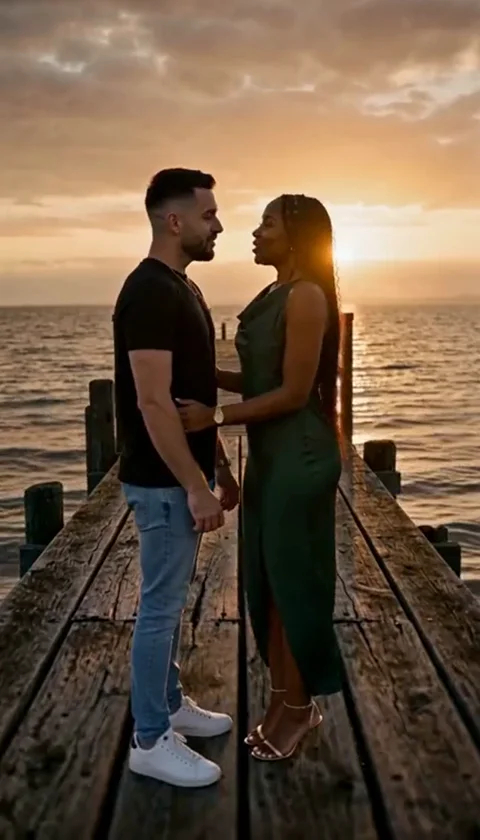
Avoid photos that are blurry, heavily pixelated, or obscured by shadows. The AI needs to identify your facial structure, eyes, and mouth to animate them effectively within the chosen scene. If you are planning to create a duet video, remember that you must upload two separate photos. The system does not support group photos, so do not attempt to crop individuals out of a larger group shot; these often result in poor facial mapping because the background noise and overlapping features confuse the processing algorithm.
Understanding Scene Requirements
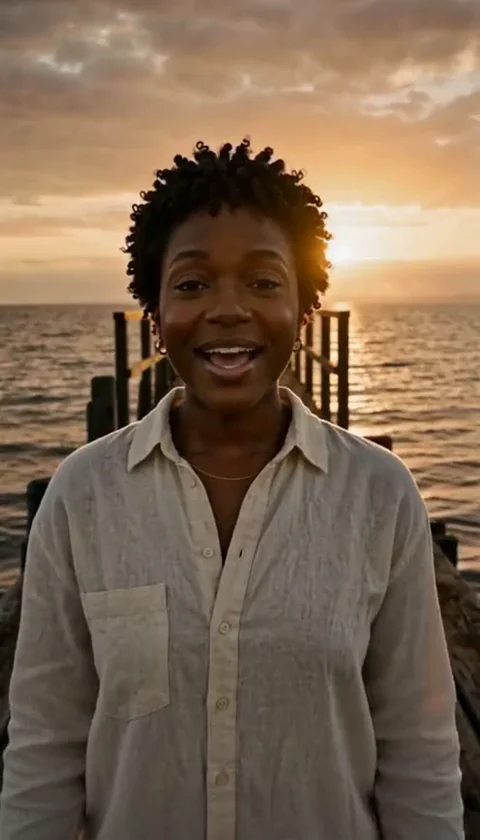
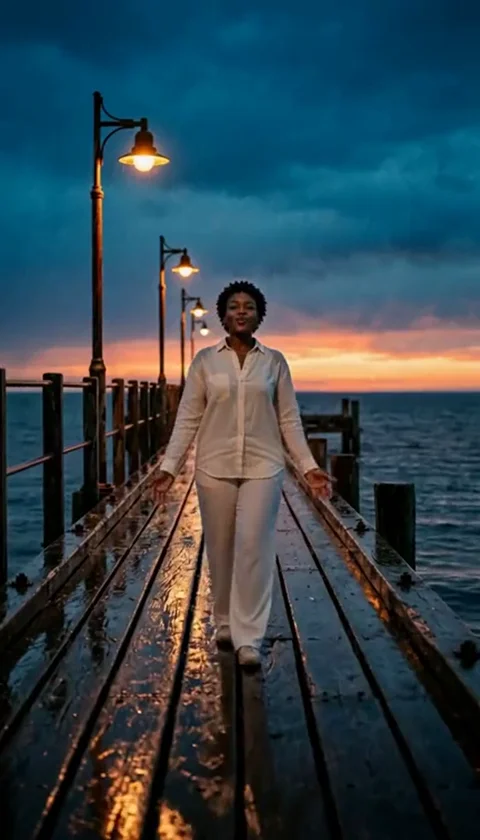
AI Raindance offers fourteen distinct scenes, each with specific aesthetic qualities. Some scenes, like the golden-hour solo or the streetlight sequence, focus heavily on facial expressions and lighting. Others, such as the sea wade or the pier edge, involve more movement and body positioning. When selecting a photo, consider the lighting in your source image. A photo taken in bright, natural light will generally blend better with outdoor scenes like the rain pier or the golden-hour templates.
For scenes like the adult with a cat on the beach, note that the AI will replace the human figure but keep the cat intact. If your source photo has a complex outfit, the system will attempt to preserve the style, but remember that the AI is interpreting your appearance based on the scene's constraints. You should not expect a perfect, one-to-one recreation of your hands or complex accessories, as these are often the most difficult elements for generative tools to stabilize during motion.
Technical Preparation Checklist
Before you upload your file, run through this checklist to minimize the risk of a failed job. A failed job will return your credits, but it is better to get it right the first time to save time.
| Feature | Requirement | Tip |
|---|---|---|
| File Format | JPG, PNG, WebP | Convert if necessary before uploading. |
| File Size | 10MB or less | Compress images if they exceed this limit. |
| Face Visibility | Clear and front-facing | Avoid profile shots or heavy filters. |
| Content | Single adult face | No group photos or cropped crowds. |
| Formatting | Vertical or Landscape | The tool maintains specific aspect ratios. |
The Role of Aspect Ratios
Many users ask if their video will be 9:16. It is important to understand that the tool preserves the source aspect ratio of the chosen scene. Vertical scenes typically follow a 4:7 or 24:43 ratio, while original trend scenes often use a 131:90 landscape format. Do not expect every output to be a standard 9:16 mobile format. If you are preparing content for a specific social media platform, keep in mind that you may need to adjust your framing after the video is generated and downloaded.
Since the tool produces silent MP4 files, you will need to add your own audio using your preferred publishing platform. This gives you the creative freedom to choose the music that fits your video, but remember that you are responsible for any copyright concerns. The platform does not provide copyright clearance, so always use tracks that you have the right to share.
Worked Example: Creating a Solo Rain Video
Imagine you want to use the Raindance solo 10-second scene. First, you log into your account and ensure you have sufficient credits. You select a high-resolution portrait of yourself where your face is well-lit and you are looking directly at the camera. You upload the file, which is 4MB, ensuring it meets the size requirement.
In the optional direction box, you might add a brief note about the desired mood, though no prompt is strictly required. You submit the job and wait for the asynchronous process to complete. Once finished, you receive a notification or check the results page. You download the silent MP4 immediately, as the links are temporary. Finally, you import the file into a video editing app on your phone, overlay the trending audio, and publish it to your social media account.
Common Mistakes and How to Fix Them
One frequent mistake is using a photo where the face is partially covered by hair, hats, or sunglasses. While the AI attempts to map your features, these obstructions often lead to distorted results. If your video looks unnatural, try a different photo where your face is completely unobstructed.
Another issue involves the asynchronous nature of the tool. Because it is not an instant process, users sometimes assume the site has frozen. If you have submitted a job, wait a few minutes. Do not try to submit multiple jobs at once, as the system only supports one active job per account. If you encounter a persistent error, contact the support team at contact@airaindancevideo.org for assistance with your payment or credit concerns.
Frequently Asked Questions
Q: Can I upload a video to use as a source? A: No, the tool only supports single photo uploads for solo scenes and two separate photos for duets. Custom video uploads are not supported.
Q: Why is my video silent? A: All generated MP4 downloads are silent by design. You are expected to add your own audio through your chosen publishing platform.
Q: What happens if my job fails? A: If a job fails due to moderation or technical issues, your credits are returned to your account automatically. You do not need to request a refund for the credits.
Q: Can I use a group photo if I crop it? A: It is strongly recommended to use a photo that only features one person. Cropping often leaves artifacts that interfere with the AI's ability to detect your face correctly.
Q: How long do I have to download my video? A: Download links are temporary. You should download your results as soon as they are ready to ensure you do not lose access to your generated content.
Further Resources
For more detailed information on managing your credits and account, please review the pricing page. If you have questions about how your data is handled during the generation process, the privacy policy provides clear details. For technical troubleshooting regarding specific scenes or upload issues, consult the troubleshooting guide. If you are interested in the specific mechanics of creating duet videos, visit the duet guide to learn about the two-photo requirement.