Add Music to an AI Raindance Video: A Creator's Guide
Learn how to add audio to your silent AI Raindance video files using platform-native tools. Follow this guide for best practices on syncing and music licensing.
AI Raindance Video editorial team · Updated October 8, 2026
Understanding Silent AI Raindance Exports
When you generate a video through the AI Raindance tool at airaindancevideo.org, the resulting MP4 file is inherently silent. The platform focuses exclusively on the image-to-video creative process, meaning it does not embed audio tracks, background music, or sound effects into your downloads. Because these files are delivered without sound, you must add your own audio layer after the generation process is complete. This design choice ensures that you retain full creative control over the soundscape of your final project. By separating the visual generation from the audio editing, the platform avoids potential issues with copyright-protected music or platform-specific audio standards that change frequently across social media.
Preparing Your Audio Workflow
Before you begin adding music, ensure your video is downloaded and saved locally on your device. Since AI Raindance does not provide a mobile app or cloud storage for finished files, you must download your results promptly using the temporary links provided upon completion. Once your video is saved, you should choose a publishing platform—such as TikTok, Instagram, or YouTube—to finalize the project. Each of these platforms offers an internal library of licensed music. Using these built-in tools is generally the most effective way to add music, as it simplifies the process of aligning your video with trending audio or specific songs while respecting the platform's individual copyright policies.
Step-by-Step Music Integration
To add music to your silent video, follow these steps within your chosen social media application:
- Open your social media app and select the option to create a new post or story.
- Upload the silent MP4 file you downloaded from the AI Raindance portal.
- Navigate to the audio or music selection menu provided by the app.
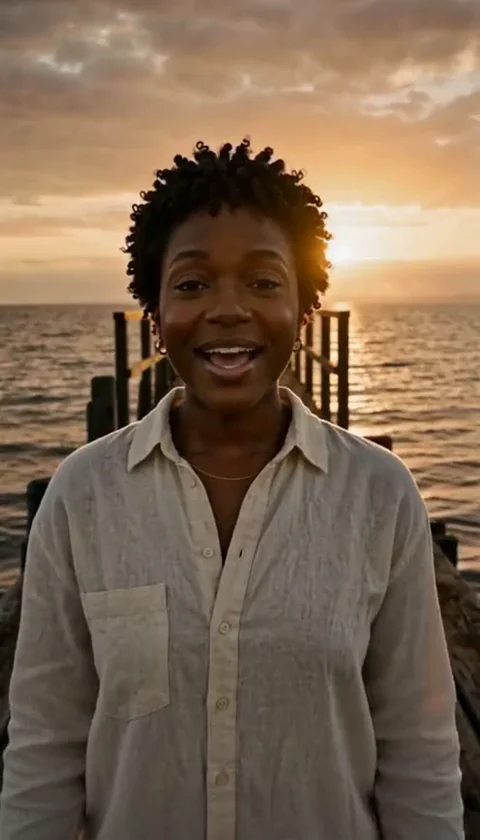
- Browse the library for a track that matches the mood of your Raindance scene, such as the golden-hour or pier-based settings.
- Use the app's editing tools to trim the audio, adjust the volume, or sync the beat to the visual transitions in your video.
- Review the video to ensure the audio levels are balanced and the timing feels natural.
- Save or publish your video according to the platform's standard procedures.
Checklist for Successful Audio Syncing
| Task | Status | Notes |
|---|---|---|
| Download video from portal | Pending | Ensure file is saved locally |
| Select target platform | Pending | TikTok, Instagram, or YouTube |
| Preview silent video | Pending | Check for visual flow first |
| Choose audio track | Pending | Match mood to scene content |
| Adjust volume levels | Pending | Ensure dialogue or music is clear |
| Sync beats to motion | Pending | Align transitions with audio peaks |
| Verify copyright status | Pending | Use platform-provided libraries |
Worked Example: Syncing a Pier Scene
Imagine you have generated a 10-second pier-edge video using the AI Raindance tool. Because the video is silent, you want to add a track that enhances the atmosphere of the sea and the movement of the subject. First, upload the 10-second file to your preferred short-form video platform. Open the audio editor and search for ambient or instrumental tracks that complement the visual pacing. If the video shows a slow walk or a subtle turn, look for a track with a steady, rhythmic beat. Place the start of the music at the exact moment the video begins. If the platform allows, use the trim feature to align a specific musical swell with the middle of the 10-second clip, where the motion is most prominent. Finally, lower the volume of the original video if any ambient noise was captured during the upload, and ensure your chosen music track is set at an appropriate volume level for your audience.
Common Mistakes and How to Fix Them
One common mistake is failing to check the timing of the audio before publishing. If the music starts too early or too late, the visual impact of the AI-generated motion can be diminished. To fix this, use the timeline editing feature within your social media app to nudge the audio track forward or backward until it aligns perfectly with the visual cues. Another frequent issue involves copyright claims. If you upload a video with music that you do not have the rights to use, your content may be muted or removed. Always prioritize the use of the platform's native music library, which has already cleared the necessary rights for your content. If you are using your own audio files, ensure you have explicit permission or that the music is royalty-free.
Frequently Asked Questions
Q: Does the AI Raindance tool offer built-in music options? A: No, all generated MP4 files are silent. You must add audio using external tools.
Q: Can I upload my own music file to the AI Raindance portal? A: No, the portal does not support the upload of audio or music files.
Q: Will adding music affect the quality of my video? A: Adding music via social media platforms typically does not affect the visual quality of your video, provided you export or save the final project correctly.
Q: What if my audio does not sync with the video? A: Use the editing tools provided by your publishing platform to trim and shift the audio track until it aligns with the visual motion.
Q: Are there specific music genres that work best for Raindance videos? A: The choice of music is subjective, but many users prefer ambient, lo-fi, or instrumental tracks that match the aesthetic of the specific scene, such as rain or beach settings.
Managing Your Creative Process
As you integrate audio, remember that the AI Raindance tool is an asynchronous service. Because video creation can take several minutes, plan your audio workflow after you have successfully received your download link. Since there is no batch generation or mobile app, focus on one project at a time to ensure you have the necessary focus to align your audio correctly. If you encounter issues with the video file itself, refer to the troubleshooting guide to ensure your source images meet the requirements for optimal output. By keeping your workflow organized, you can effectively bridge the gap between the silent AI-generated visuals and the final, polished video you share with your audience. Always review the terms of service to understand your rights and responsibilities when publishing content created with this tool. For further guidance on selecting photos, visit the photo guide to improve your results before adding sound.