AI Raindance Video Privacy: Photos, Consent and Sharing
Learn how to use AI Raindance Video for private, consent-based photo animations. Follow our guide for image preparation, scene selection, and credit management.
AI Raindance Video editorial team · Updated October 8, 2026
Understanding the Process
To create an AI Raindance video, you must use the web-based tool at airaindancevideo.org. This platform allows you to transform static images into animated videos using specific templates. The process requires you to have explicit consent for every face used in your uploads. Because the tool operates asynchronously, you upload your files, select a scene, and wait for the system to process your request. Each generation consumes 100 credits, which are purchased in one-time packs. A public result may be chosen for our gallery after review. Your uploaded photos stay private. Private results stay out of the gallery. Available to customers with a completed purchase.
Preparing Your Source Materials
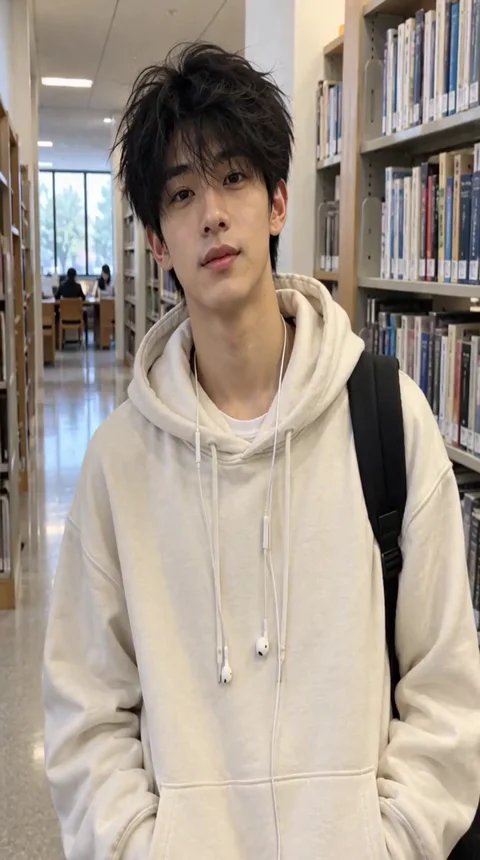
Success begins with your source files. The tool accepts JPG, PNG, and WebP formats, provided each file is 10 megabytes or smaller. For the best results, ensure your images feature a clearly visible adult face. If you are creating a solo video, you only need one photo. For duet scenes, you must provide two separate photos.
Remember that the AI attempts to preserve the source outfit and hair while integrating the face. It does not allow for custom video uploads or group photos, so keep your subjects isolated. Because the system does not guarantee exact likeness, motion, or hand positioning, choosing high-quality, well-lit photos is the most effective way to influence the final output. Avoid images where the face is obscured by heavy shadows, accessories, or extreme angles, as these factors can lead to rejection by the moderation system.
Navigating Scene Selection
There are fourteen distinct scenes available, each with specific durations and requirements. Understanding these options helps you match your vision to the tool's capabilities. For instance, some scenes are designed for solo subjects, while others are specifically for duets.
| Scene Type | Duration | Subject Count | Aspect Ratio |
|---|---|---|---|
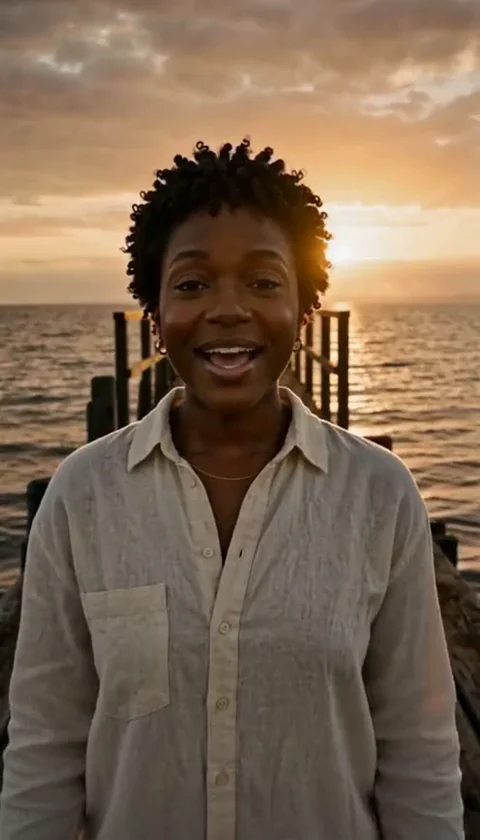
| Golden-hour solo | 8s | 1 | Vertical |
| Golden-hour duet | 8s | 2 | Vertical |
| Reception duet | 8s | 2 | Vertical |
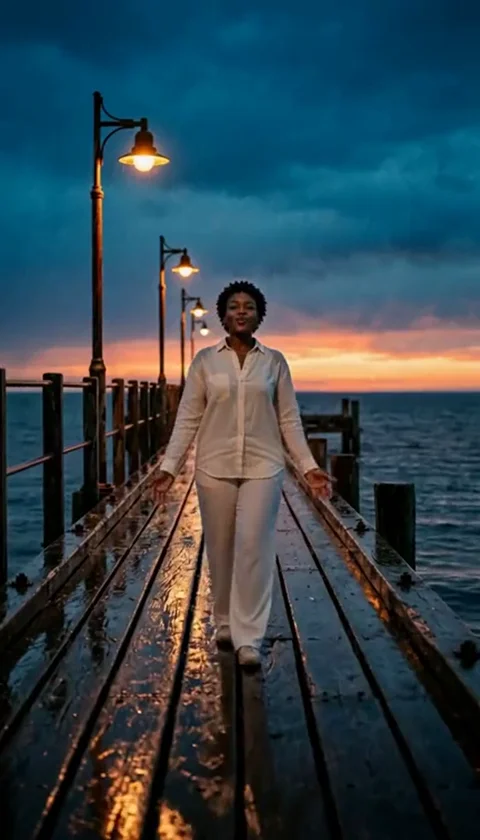
| Solo rain | 8s | 1 | Vertical |
| Rain pier man | 10s | 1 | Vertical |
| Pier edge | 10s | 1 | Vertical |
| Sea wade | 10s | 1 | Vertical |
| Streetlight | 10s | 1 | Vertical |
| Quiet dock | 10s | 1 | Vertical |
| Adult with cat | 10s | 1 | Vertical |
| Raindance solo | 10s | 1 | Vertical |
| Trend Opening | 10s | 1 | Landscape |
| Trend Middle | 10s | 1 | Landscape |
| Trend Ending | 10s | 1 | Landscape |
Note that vertical scenes maintain the aspect ratio of the source, while the original trend scenes utilize a landscape format. You cannot combine these into a single 30-second output in one job; each scene is generated individually.
Managing Credits and Payments
Access to the tool is credit-based. You purchase credits in one-time packs, and these do not expire through a subscription model. As of October 8, 2026, the pricing is as follows:
- 1 video (100 credits): $9.99 USD
- 3 videos (300 credits): $23.99 USD
- 10 videos (1000 credits): $59.99 USD
All prices are subject to applicable taxes at checkout. If a job fails due to moderation or technical issues, the credits are returned to your account automatically. If you encounter payment issues, you should contact the support team directly at contact@airaindancevideo.org rather than seeking an automated refund. Always ensure you are signed into your account before initiating a purchase to ensure the credits are applied correctly.
A Worked Example: Creating a Solo Rain Scene
If you want to create a solo rain video, follow these steps. First, ensure your photo is under 10MB and the face is clear. Sign into your account and navigate to the upload form. Select the 'Solo Rain' scene from the available options. Upload your single photo. If you wish to provide specific guidance, you can add a text direction of up to 500 characters, though this is optional.
Submit the job. The system will then begin the asynchronous generation process. Because there is no Service Level Agreement (SLA), the time required can vary. Once the process is complete, you will receive a notification or see the result in your account dashboard. Download your file immediately, as download links are temporary. Remember that the output is silent, so you will need to add your own audio using your preferred social media or video editing software.
Common Mistakes and How to Fix Them
One common mistake is expecting the AI to replicate complex hand gestures or specific, intricate movements. The AI focuses on the face and general appearance, but it cannot guarantee perfect anatomical accuracy. If the output looks distorted, try using a different source photo with a more neutral expression or clearer lighting.
Another issue involves moderation rejections. The system automatically checks both the text directions and the images provided. If your job is rejected, it is usually because the content violates the tool's safety guidelines. Do not attempt to bypass these filters; instead, review your input to ensure it meets the criteria for adult-only, consent-based content. If you believe a rejection was a mistake, you can try submitting a different image, but understand that the moderation process is not infallible.
Finally, users often forget that the output is silent. Do not be alarmed if your video has no sound; this is a standard feature. You are responsible for adding music or sound effects after downloading the file. Ensure you have the necessary permissions for any audio you add to your video before publishing it on any platform.
Technical Considerations and Limitations
It is important to manage your expectations regarding the output. The AI is a creative tool, not a professional animation studio. You may notice variations in how the face is rendered, especially if the source image is low resolution. The tool does not support batch generation, meaning you can only have one active job per account at any given time. This limitation is designed to maintain system stability.
Furthermore, there is no mobile app. You must use a web browser to access the tool. Because the tool is not affiliated with any social media platforms, it cannot automatically publish your content or clear copyright for the music you choose to add. You must handle all publishing and copyright compliance yourself. Always download your results promptly, as the storage of generated files is not permanent. If you lose access to a download link, you may need to regenerate the video, which will consume additional credits.
Frequently Asked Questions
Q: Can I use a group photo for the duet scene? A: No, the tool does not support group photos. You must use two separate, individual photos for duet scenes.
Q: Are my photos stored publicly? A: A public result may be chosen for our gallery after review. Your uploaded photos stay private. Private results stay out of the gallery. Available to customers with a completed purchase.
Q: What happens if my video generation fails? A: If a job fails, the 100 credits used for that generation are automatically returned to your account.
Q: Can I get a refund for unused credits? A: The platform does not offer automatic cash refunds. Please contact support via email if you have specific payment concerns.
Q: Is there a free trial? A: No, the platform does not offer free trials or free credits. All generations require purchased credits.
Helpful Resources
For more information on navigating the tool and optimizing your results, please refer to the following resources provided by the platform: