AI Raindance Video Ideas for Solo and Duet Performances
Explore creative ways to use AI Raindance video templates. Learn how to craft solo and duet visual stories using your own photos while managing expectations.
AI Raindance Video editorial team · Updated October 8, 2026
Understanding the Raindance Creative Workflow
AI Raindance Video provides a specialized platform for transforming static portraits into motion-based visual sequences. Whether you are working with a single solo image or two distinct duet photos, the process relies on your uploaded assets to define the final aesthetic. Because the tool operates on a credit-based system without subscriptions, each generation represents a deliberate creative choice. The platform offers fourteen distinct scene types, ranging from golden-hour captures to atmospheric rain-soaked environments, allowing for a diverse range of storytelling possibilities.
To begin, ensure your files are in JPG, PNG, or WebP format and remain under the 10MB limit. The tool requires clear, adult faces with explicit consent. Once you sign in at the homepage and select your desired scene, you can provide optional direction up to 500 characters. This text input helps guide the AI, though it is not a requirement for generation. Because the output is silent, your creative process must account for the eventual addition of audio within your chosen social media or publishing platform. Remember that the tool is independent and does not provide copyright clearance for music, so always use tracks that you have the legal right to share.
Solo Scene Concepts: Capturing Mood and Solitude
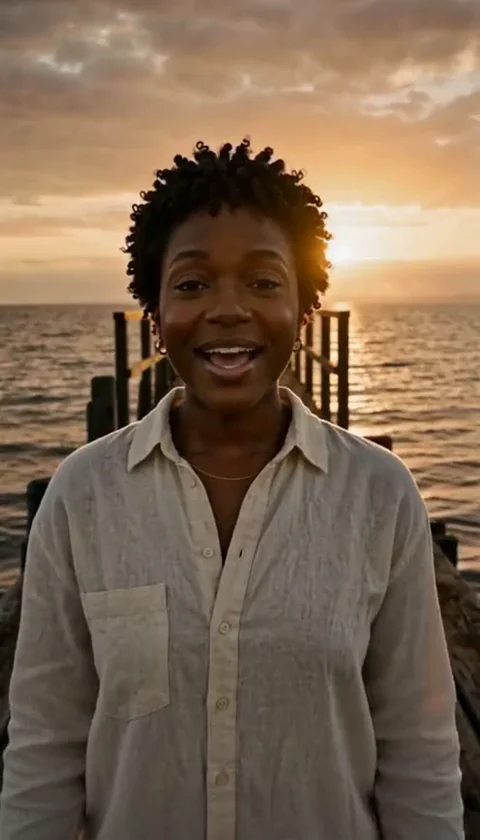
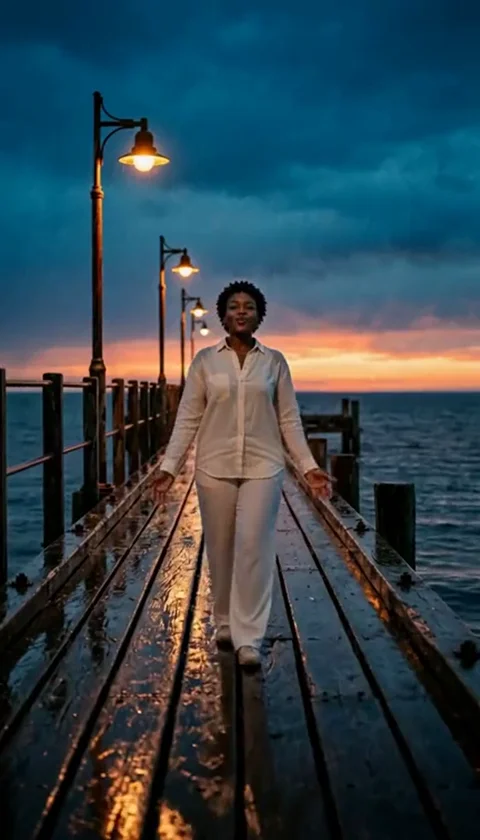
Solo templates are ideal for character-driven narratives. When working with a single photo, the AI focuses on preserving your face and hair while maintaining the outfit from your source image. For the 'Solo Rain' or 'Streetlight' scenes, consider using a portrait with a neutral or contemplative expression. These settings thrive on moody, cinematic lighting, so a photo with high contrast often yields more compelling results than a flatly lit image.
If you choose the 'Raindance Solo' scene, think about how your pose interacts with the environment. Since the tool attempts to map your features onto the scene's motion, a photo where you are looking slightly off-camera can create a more natural sense of presence than a direct, static headshot. The 'Pier Edge' or 'Sea Wade' options work exceptionally well for storytelling that emphasizes themes of travel or introspection. By selecting a high-quality, high-resolution source photo, you provide the AI with the best possible data to interpret your likeness.
Duet Scene Concepts: Building Dynamic Interactions
Duet templates require two separate photos, which allows you to create a visual dialogue between two distinct subjects. This is particularly effective for 'Reception' or 'Golden-Hour Duet' scenes. When preparing your two photos, try to match the lighting conditions of both images as closely as possible. If one photo is taken in bright, direct sunlight and the other in a dim interior, the resulting video may feel disjointed.
For a cohesive duet, aim for similar angles. If your first subject is captured from a three-quarter angle, the second subject should ideally share a similar perspective. This consistency helps the AI create a more seamless transition between the two characters within the duet template. Use the optional direction field to clarify the relationship or the mood you wish to convey, such as 'joyful celebration' or 'quiet reunion.' This extra context can assist the AI in interpreting the interaction between the two uploaded portraits.
Technical Considerations and Asset Preparation
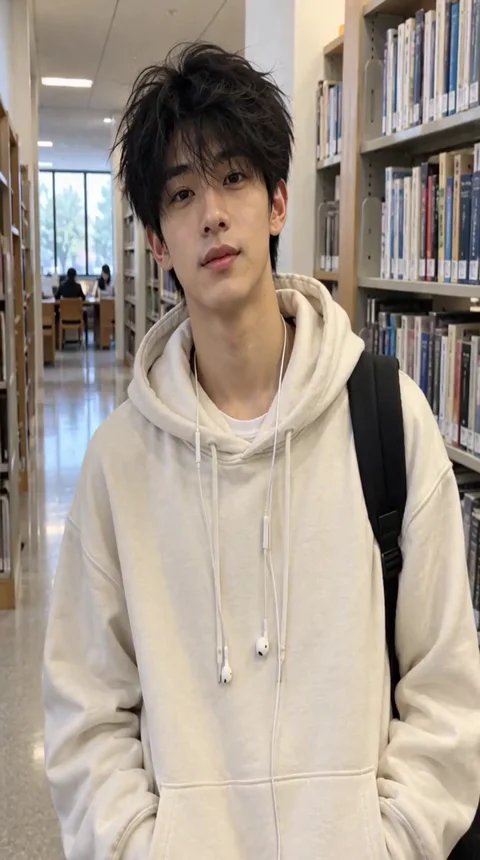
Success with AI Raindance Video starts with your source material. The platform uses your uploaded photos to generate the output, meaning the quality of your input directly influences the final video. Avoid group photos, as the tool is designed for individual face replacement. If you upload a photo with multiple people, the AI may struggle to identify the primary subject, leading to unpredictable results. Stick to clear, well-lit portraits where the face is unobstructed by hair, hats, or heavy shadows.
It is important to note that the tool does not guarantee exact likeness or precise hand movements. The AI is interpreting your image to fit the template's existing motion. When selecting a scene, consider the aspect ratio. While vertical scenes generally maintain a 4:7 or 24:43 ratio, the original trend scene uses a landscape 131:90 ratio. Do not assume every output will fit a standard 9:16 mobile screen perfectly. Plan your framing so that the most important visual elements are centered, ensuring they remain visible even if the platform crops the edges during final publication.
Checklist for Successful Video Generation
- Verify your image file format is JPG, PNG, or WebP.
- Ensure each file is 10MB or smaller.
- Confirm the face is clearly visible and unobstructed.
- Choose a scene that matches the mood of your source photo.
- Provide optional text direction to refine the scene's character.
- Check your credit balance before starting a new job.
- Download your results immediately, as links are temporary.
- Review your output for any artifacts before publishing.
Troubleshooting Common Creative Hurdles
If your video does not look as expected, consider the source image. A common mistake is using a low-resolution photo or an image where the face is tilted at an extreme angle. The AI works best with standard portrait orientations. If a job fails, credits are returned automatically to your account, so you can adjust your assets and try again without losing your investment. If you encounter persistent technical issues, reach out to contact@airaindancevideo.org for payment or account support.
Another frequent issue involves the interpretation of the outfit. While the tool attempts to preserve the user's appearance, the AI's rendering of clothing is dependent on the specific template's constraints. If you find the clothing is not rendering to your preference, try uploading a photo where the outfit is simple and lacks intricate patterns or complex textures. This reduces the processing load and often leads to a cleaner, more accurate result.
Worked Example: Creating a Golden-Hour Duet
Imagine you want to create a golden-hour duet video. First, you select two high-quality portraits of yourself and a friend, both taken outdoors during the late afternoon. You upload these to the 'Golden-Hour Duet' template. In the optional direction box, you write: 'Two friends laughing together under a sunset sky.'
You submit the job and wait for the asynchronous generation process to complete. Once the notification arrives, you download the silent MP4 file. You then import this file into your preferred video editing app, add a soft, acoustic track that complements the golden-hour theme, and adjust the color grading to match the warm tones of the video. By layering your own music and minor edits, you transform the raw AI output into a finished piece of content that feels personal and polished.
Frequently Asked Questions
Q: Can I use one photo for a duet template? A: No, duet templates require two separate photos to function correctly.
Q: Are there any subscription fees? A: No, the platform operates on a one-time credit pack system with no recurring subscriptions.
Q: How long do my download links last? A: Download links are temporary. You should download your generated videos as soon as they are ready to ensure you do not lose access to your files.
Q: Can I get a refund if I am unhappy with the result? A: The platform does not offer automatic cash refunds. For payment-related concerns, please contact the support email provided on the site.
Q: Is there a mobile app available? A: No, the tool is accessed entirely through the web browser at the official site.
A public result may be chosen for our gallery after review. Your uploaded photos stay private. Private results stay out of the gallery. Available to customers with a completed purchase. A: A public result may be chosen for our gallery after review. Your uploaded photos stay private. Private results stay out of the gallery. Available to customers with a completed purchase.
For further guidance, visit the pricing page to understand credit packs, review the privacy policy regarding your data, or check the terms of service. If you need help with specific photo selection, read the photo guide or explore the duet video tips for more advanced interaction ideas. If you run into technical errors, the troubleshooting guide provides steps to resolve common failures.