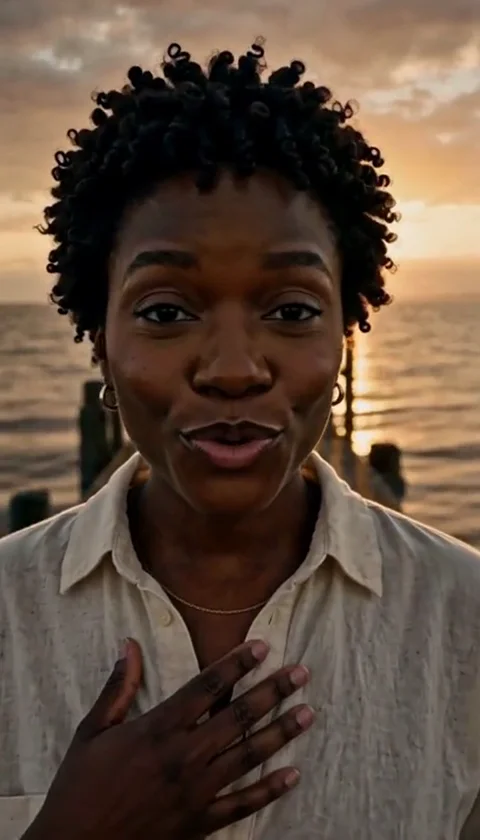
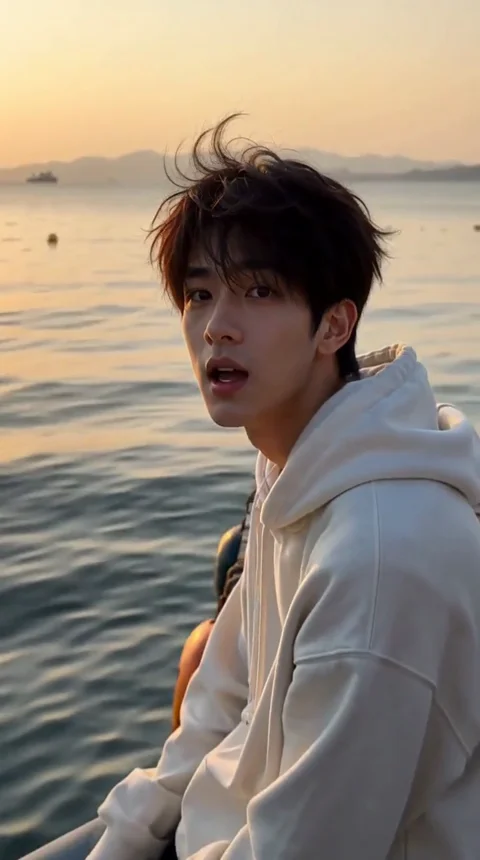
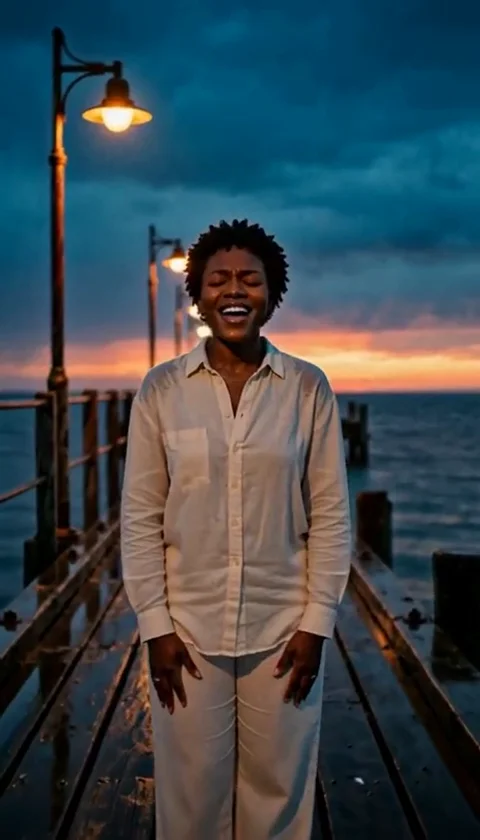
Halloween Couple Photo Editor - Two Photos, One Scene
Edit two adult photos into a coordinated Halloween couple portrait. Name each person's role, keep both faces recognizable and avoid identity swaps.
AI Raindance Video Redaktionsteam · Aktualisiert am 8. Oktober 2026
Why a Couple Edit Is Not a Solo Edit With Two Faces
Most AI photo tools are built around a single portrait. You upload one face, pick a style, and the model rebuilds the scene around that one person. That works because there is only one identity to protect.
A couple edit is harder. Two people means two identities, two poses, two costume directions, and one shared scene that has to look like both people agreed to be in the same photograph. When a tool treats two uploads as a single blended prompt, you get the classic failure: one face dominates, the other drifts, or the model quietly swaps features between them.
The Halloween Couple Photo Editor on airaindancevideo.org is built around that problem. You upload two separate adult photos, name each person's role, and the tool builds one coordinated Halloween portrait around both of them. This guide explains how to get a result worth spending credits on - and where the honest limits are.
The Two-Photo Rule, Explained Plainly
One photo per person, always
For a couple portrait you upload two separate photos - one of each adult. Do not upload a photo of the two of you together and expect a clean split. A single group photo gives the model one image to interpret, and it will usually favor whichever face is larger, better lit, or more centered.
Two separate photos give each person their own identity anchor. That is the entire point of the workflow.
Name the roles before you generate
The prompt field is where couple edits are won or lost. Instead of writing "us as a Halloween couple," assign each person a named role tied to their photo.
Weak prompt: "Make us a scary couple."
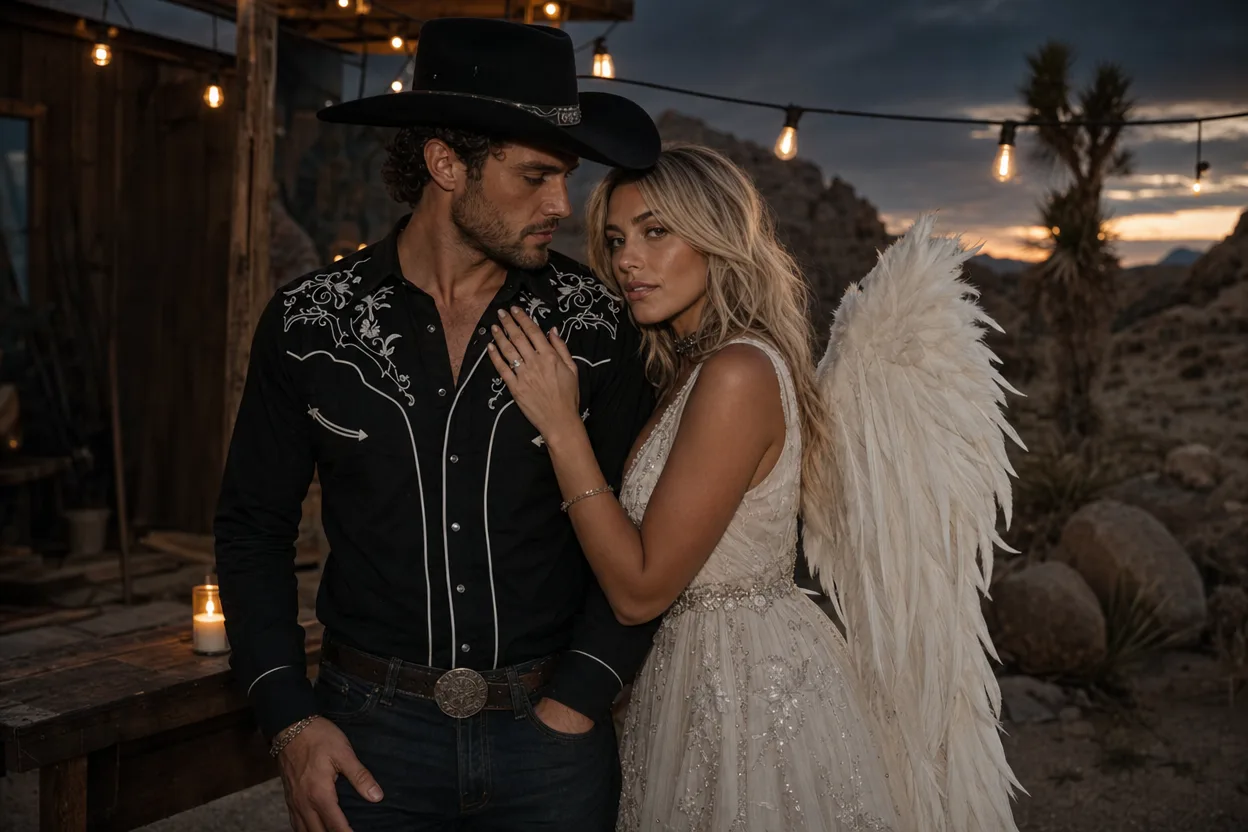
Strong prompt: "Person A (photo 1) is the cowboy angel in a dark hat and pale wings. Person B (photo 2) is the midnight braids figure in deep purple. Both standing on a foggy porch at night, warm lantern light, looking at camera."
The second version tells the model which face belongs to which costume. That single habit prevents most face swaps before they happen.
Choosing Source Photos That Survive the Edit
The model can only preserve what it can clearly see. Before you spend anything, check both photos against this list.
Source photo checklist
- Both people are adults, and both have consented to the edit.
- Each photo shows one person only - no arms of friends, no photobombers.
- The face is sharp and front-facing, or turned no more than slightly.
- Even lighting on the face; avoid heavy shadow across one eye or the nose.
- No sunglasses, masks, or heavy filters that hide facial structure.
- Hair is visible enough to read - braids, curls, and length all help the model match the look.
- Clothing in the source is simple; busy patterns compete with the costume.
- Resolution is decent. A blurry upload produces a blurry face, no matter the look.
- Both photos are similar in framing - two head-and-shoulders shots pair better than one close-up and one full-body.
If one photo is much stronger than the other, fix that first. A great photo paired with a weak one usually produces a portrait where one person looks convincing and the other looks approximate.
Couple Looks That Actually Pair Well
The available looks are original creative directions, not licensed character copies. That matters for two reasons: you are not recreating a specific film or franchise character, and the model is free to build a scene rather than imitate a costume reference it was never trained to match exactly.
Four directions that pair cleanly for couples:
Cowboy Angel - a strong contrast look. One person carries the Western silhouette, the other the pale winged element. Contrast reads well in a shared frame because the two halves are visually distinct without clashing.
Midnight Braids - deep purples, dark styling, moody light. This one rewards a source photo where hair is clearly visible, since the braid detail is part of the look.
Cosmic Princess - celestial, high-contrast, more theatrical. Works best when both source photos are evenly lit, because the look adds its own strong lighting.
Glam Skeleton - the most graphic of the four. Facial structure needs to be clear in both uploads, since the makeup direction sits directly on the face.
A practical tip: pick a look where the two roles are visually different but tonally matched. Matching tones keep the portrait from looking like two separate images pasted together.
How to Avoid Face Swaps
Face swaps are the most common complaint in couple edits, and they are almost always a prompt problem, not a model problem. Four habits fix most of them.
1. Anchor each role to a photo number. Write "Person A (photo 1)" and "Person B (photo 2)" explicitly. Never leave the assignment ambiguous.
2. Describe distinguishing features once. If one person has short hair and the other has long braids, say so. The model uses those details to keep identities separate.
3. Keep the scene shared but the roles separate. "Both on a foggy porch" is a shared scene. "Person A wears the hat, Person B wears the wings" keeps the roles distinct. Mixing those two sentences is where swaps begin.
4. Do not ask for a physical interaction you have not described. If you want them holding hands or standing shoulder to shoulder, say it plainly. Vague requests for "romantic pose" invite the model to merge the two figures.
From Portrait to a Short Couple Video
Once you have a portrait you like, you can turn it into motion. Video generation produces an 8-10 second silent MP4. It is short by design - long enough for a loop, a story post, or a Halloween greeting, not a full scene.
Because the file is silent, you add your own music afterward. That is usually the better outcome anyway: you control the track, the timing, and the mood, and you are not stuck with a generic audio bed.
Treat the video as a second step, not the first. Get the still portrait right, confirm both faces look like the people you uploaded, then animate it.
What It Costs, Honestly
Pricing is straightforward and there is no subscription.
- An image look costs 20 credits.
- Video generation costs 100 credits.
- Credits come in one-time packs - you buy what you use, and nothing renews automatically.
That means a couple portrait plus a video is 120 credits per finished attempt. Budget for a retry or two while you are learning the prompt structure; most people improve noticeably on their second attempt simply by naming roles clearly.
If a job fails, credits are returned. You are not charged for a generation that did not complete.
You can review current pack sizes on the pricing page before you commit.
Moderation, Consent, and What This Page Will Not Do
Moderation runs before and after generation. Uploads are screened on the way in, and outputs are screened on the way out. The system uses SEEAPI for moderation, and image routing runs through KIE with fal, Replicate, and WaveSpeed as fallbacks where supported - which is why occasional routing differences can appear between attempts.
Both people in the photos must be adults, and both must consent to the edit. This is not a formality; it is the condition for using the tool at all.
This page will not:
- Recreate a specific licensed character or franchise costume.
- Work from photos of minors.
- Produce a convincing result from a single group photo of two people.
- Guarantee a perfect likeness - it is a stylized portrait tool, not a forensic reconstruction.
Ready to Build the Portrait?
Upload two adult photos, name each person's role, and pick a look. Start with the Halloween Couple Photo Editor, and check credit packs first so you know exactly what a portrait and a video will cost.
FAQ
Can I upload one photo of us together instead of two separate photos? No - for a couple portrait you need two separate photos, one per adult. A single group photo gives the model one image to interpret and usually produces a lopsided result.
Why did the faces get mixed up in my first attempt? Almost always because the prompt did not assign roles to specific photos. Write "Person A (photo 1)" and "Person B (photo 2)" and describe one distinguishing feature for each.
How long is the video, and does it have sound? The video is an 8-10 second silent MP4. You add your own music afterward.
What happens if a generation fails? Failed jobs return your credits. You are not charged for a generation that did not complete.
Do I need a subscription? No. Credits are one-time packs with no recurring billing. An image look costs 20 credits and video generation costs 100.